I used to think prompts were only about what you want. Then I spent an entire weekend trying to generate a simple image of a person without extra fingers. Nothing worked. I tried longer prompts, shorter prompts, different tools – same problem.
Finally, someone in an online forum told me about negative prompts. I added “no extra fingers, no bad anatomy” – and the problem disappeared instantly.
That weekend taught me that sometimes what you DON’T want matters more than what you do.
In this guide, I’ll explain how negative prompts work, when to use them, and how they can fix your most frustrating AI image problems.
What Are Negative Prompts?
Negative prompts tell the AI what to avoid in the generated image. They’re like saying “I want this, but NOT that.”
Most AI tools allow you to specify:
- Things you don’t want in the image
- Styles you want to avoid
- Common problems you want to fix
Before I discovered negative prompts, I would regenerate images dozens of times hoping the problem would fix itself. Now I just add a negative prompt and get it right on the first try.
Why Negative Prompts Work
AI models are trained on massive datasets that include both good and bad examples. They know what extra fingers look like. They know what bad anatomy looks like. They just need you to tell them to avoid it.
Without negative prompts, the AI might include unwanted elements because they’re statistically common in its training data. Negative prompts tell it to suppress those patterns.
Common Problems Fixed by Negative Prompts
1. Extra Fingers and Bad Anatomy
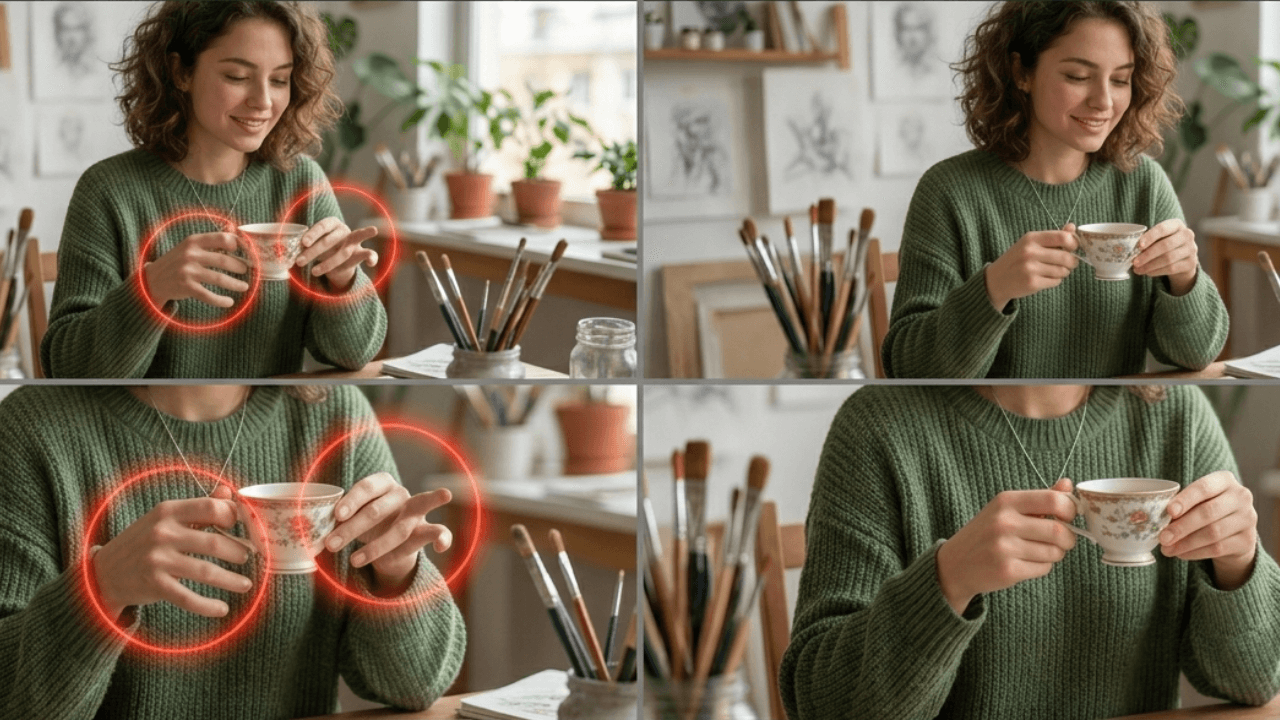
This is the most famous AI problem. Hands are hard for AI.
❌ Problem: “a person holding a coffee cup” → often generates extra fingers
✅ Fix: Add “no extra fingers, no bad anatomy, natural hands”
This single negative prompt saved me hundreds of regenerations.
2. Unwanted Text and Watermarks
AI sometimes adds random text or watermarks.
❌ Problem: Images with gibberish text
✅ Fix: Add “no text, no watermarks, no signatures”
3. Distorted Faces
Faces can look melted or unnatural.
❌ Problem: Unrealistic facial features
✅ Fix: Add “no distorted face, natural facial features, realistic proportions”
4. Wrong Style Elements
AI might add styles you don’t want.
❌ Problem: Realistic image with cartoon elements
✅ Fix: Add “no cartoon, no illustration, photorealistic only”
5. Extra Objects
AI might add things you didn’t ask for.
❌ Problem: Portrait with random objects in background
✅ Fix: Add “no extra objects, clean background”
For more on common problems and solutions, our guide on [Common Beginner Mistakes in AI Image Generation] covers these issues in detail.
Negative Prompts Cheat Sheet
| Problem | Negative Prompt to Add |
|---|---|
| Extra fingers | no extra fingers, no bad hands, natural hands |
| Bad anatomy | no bad anatomy, realistic proportions, natural body |
| Text/watermarks | no text, no watermarks, no signatures |
| Distorted face | no distorted face, natural facial features |
| Wrong style | no cartoon, no illustration, photorealistic only |
| Extra objects | no extra objects, clean background |
| Blurry | no blur, sharp focus only |
| Low quality | no low quality, no pixelation, high resolution only |
How to Use Negative Prompts in Different Tools
Leonardo AI
Leonardo has a dedicated negative prompt field. Just paste your negative prompts there.
Midjourney
Use the --no parameter: --no extra fingers, bad anatomy
Stable Diffusion
Use the negative prompt field in most interfaces.
Our guide on [Midjourney vs Leonardo vs Stable Diffusion] explains tool-specific differences in detail.
Practical Examples
Example 1: Portrait Photography
Without Negative Prompts:
“a portrait of a young man”
Result: Sometimes good, sometimes extra fingers or distorted face
With Negative Prompts:
“a portrait of a young man –no extra fingers, no bad anatomy, no distorted face, natural proportions”
Result: Consistently good portraits
Example 2: Product Photography
Without Negative Prompts:
“a luxury watch on a table”
Result: Watch might have weird reflections or extra elements
With Negative Prompts:
“a luxury watch on a table –no extra objects, no text, clean background, sharp focus”
Result: Clean, professional product image
Example 3: Complex Scenes
Without Negative Prompts:
“a busy street market with many people”
Result: People might have extra limbs or distorted faces
With Negative Prompts:
“a busy street market with many people –no bad anatomy, no extra fingers, no distorted faces, realistic proportions”
Result: Crowd looks natural and realistic
Common Negative Prompt Mistakes
1. Too Many Negative Prompts
❌ Wrong: –no this, no that, no everything, no anything
✅ Right: Focus on the 2-3 most important things to avoid
2. Conflicting Instructions
❌ Wrong: “photorealistic –no realistic” (conflicts)
✅ Right: Be consistent
3. Ignoring Tool Limitations
Different tools support negative prompts differently. Check your tool’s documentation.
Our guide on [Leonardo AI for Realistic Images] explains how Leonardo handles negative prompts especially well.
Advanced Negative Prompt Techniques
Technique 1: Stacking Related Negatives
Instead of “no extra fingers” alone, use:
“no extra fingers, no bad hands, natural hands, realistic hand anatomy”
Technique 2: Style Avoidance
If you want photorealism but the AI keeps adding artistic elements:
“no illustration, no cartoon, no painting, no digital art, photorealistic only”
Technique 3: Quality Assurance
For consistently high-quality outputs:
“no blur, no low quality, no pixelation, no compression artifacts, sharp focus, 8K quality”
Frequently Asked Questions
Do all AI tools support negative prompts?
Most modern tools do, but the syntax varies. Check your tool’s documentation.Can negative prompts fix everything?
No, but they fix many common problems. Some issues require better positive prompts.How many negative prompts should I use?
2-4 is usually enough. Too many can confuse the AI.Do negative prompts work the same across tools?
The concept is the same, but implementation differs. Our guide [Midjourney vs Leonardo vs Stable Diffusion] explains tool-specific differences.What if negative prompts don’t work?
Try different wording. Sometimes the AI doesn’t recognize certain terms.
Conclusion
That weekend of frustration taught me a valuable lesson: sometimes you need to tell the AI what NOT to do. Negative prompts have saved me countless hours and made my images consistently better.
Now I never generate an image without thinking about what I want to avoid. It’s as important as what I want to include.
For a complete understanding of AI image generation, including prompts, models, and workflows, check out our comprehensive AI Image Generation Guide .
Thank you for reading!