When I first started sharing my AI images on Instagram, I couldn’t understand why they looked cropped and low quality. I was proud of my prompts, but the platform ruined them. My square images were getting cut off, my portraits looked zoomed in, and my landscapes lost their impact.
After weeks of frustration, I learned about aspect ratios – and realized I had been generating square images for vertical reels. That simple fix changed everything. Now I never generate without considering where the image will be used.
In this guide, I’ll explain everything you need to know about aspect ratios and resolution for AI images – so your images look perfect everywhere.
For a complete foundation in AI image generation, including how prompts work at a basic level, check out our comprehensive AI Image Generation Guide .
What Is Aspect Ratio?
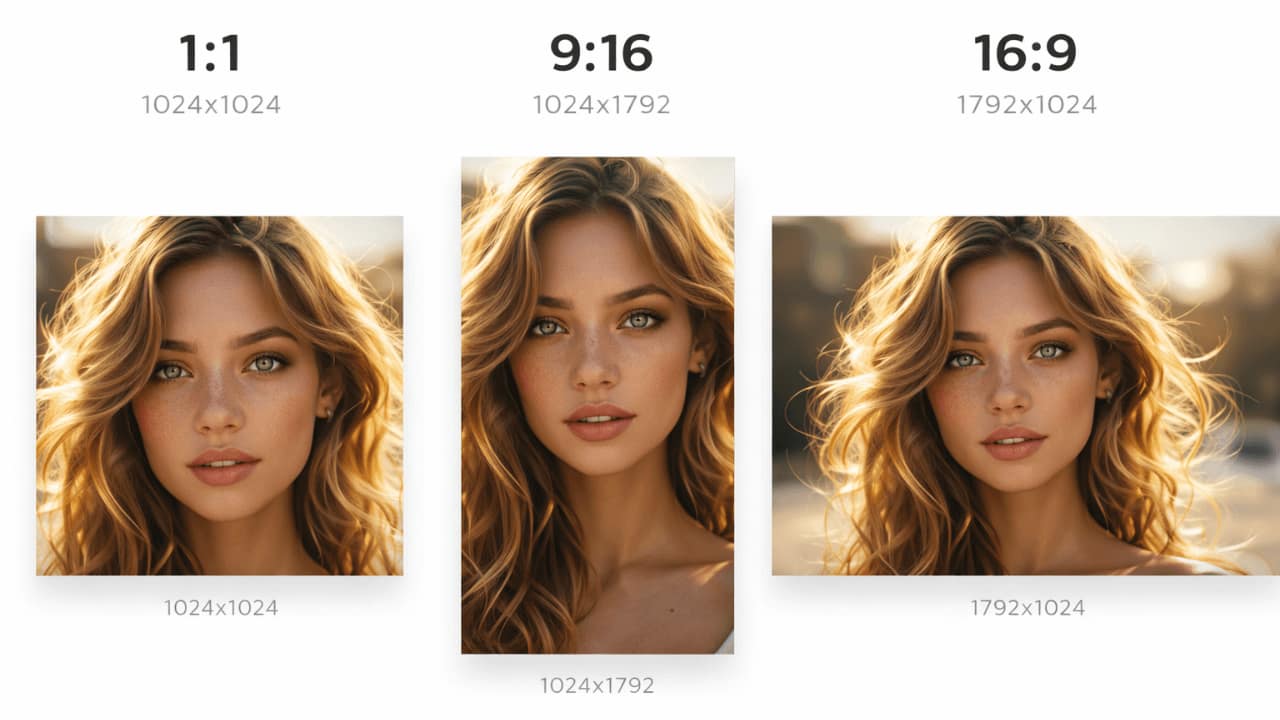
Aspect ratio is the proportional relationship between an image’s width and height. It’s written as width:height.
For example:
- 1:1 – Square
- 16:9 – Widescreen, horizontal
- 9:16 – Vertical, phone-friendly
- 4:3 – Classic photography
- 3:2 – Standard DSLR
Choosing the wrong aspect ratio was my biggest mistake. My images looked great on my computer but terrible on Instagram because I didn’t match the platform’s requirements.
Why Aspect Ratio Matters
1. Platform Requirements
Different platforms prefer different aspect ratios:
| Platform | Best Aspect Ratio | Use For |
|---|---|---|
| Instagram Feed | 1:1 (square) | Posts |
| Instagram Stories/Reels | 9:16 (vertical) | Stories, reels |
| YouTube Thumbnails | 16:9 (horizontal) | Thumbnails |
| Facebook Posts | 16:9 or 1:1 | General posts |
| 2:3 (vertical) | Pins | |
| Twitter/X | 16:9 or 1:1 | Tweets |
| 1:1 or 4:3 | Professional posts |
2. Composition Impact
Aspect ratio affects how your image is composed:
- Square (1:1) – Balanced, good for portraits and products
- Vertical (9:16) – Great for full-body shots, stories
- Horizontal (16:9) – Perfect for landscapes, group shots
3. Cropping Prevention
If you generate in the wrong ratio, platforms will crop your image automatically – often cutting off important elements.
I learned this when my carefully composed portraits got cropped at the forehead. Now I always generate in the target aspect ratio.
Common Aspect Ratios Explained
1:1 Square
Best For: Instagram feed, profile pictures, product shots
How to Specify: --ar 1:1 or “square format”
Pros: Balanced, works everywhere, no cropping issues
Cons: Can feel limiting for landscapes or full-body shots
9:16 Vertical
Best For: Instagram stories, reels, TikTok, mobile-first content
How to Specify: --ar 9:16 or “vertical format, phone screen ratio”
Pros: Full-screen on mobile, great for portraits
Cons: Not suitable for desktop viewing
16:9 Horizontal
Best For: YouTube thumbnails, desktop wallpapers, landscapes
How to Specify: --ar 16:9 or “widescreen format”
Pros: Classic video ratio, great for wide scenes
Cons: Can look small on mobile
4:3 Classic
Best For: Traditional photography, prints, presentations
How to Specify: --ar 4:3 or “classic photo ratio”
Pros: Familiar, balanced, good for prints
Cons: Not optimized for social media
3:2 DSLR
Best For: Professional photography, prints
How to Specify: --ar 3:2 or “DSLR format”
Pros: Standard for many cameras, professional look
Cons: May need cropping for social media
For more on composition and framing, our guide on [Camera Terms Explained for AI Image Generation] covers related concepts.
Resolution Explained
Resolution determines image quality and detail. Higher resolution = more detail, but larger file size.
| Resolution | Best For | File Size |
|---|---|---|
| 512×512 | Quick previews, thumbnails | Small |
| 1024×1024 | Social media, web use | Medium |
| 2048×2048 | Print, high-quality web | Large |
| 4096×4096 | Professional print, stock images | Very Large |
I always generate at 2048×2048 (or equivalent for non-square ratios). It gives me flexibility to resize down without losing quality.
Platform-Specific Recommendations
Instagram Feed
- Aspect Ratio: 1:1 (square) or 4:5 (vertical)
- Resolution: 1080×1080 or 1080×1350
- Prompt: “square format, 1:1 aspect ratio”
Instagram Stories/Reels
- Aspect Ratio: 9:16 (vertical)
- Resolution: 1080×1920
- Prompt: “vertical format, 9:16 aspect ratio, phone screen ratio”
YouTube Thumbnails
- Aspect Ratio: 16:9 (horizontal)
- Resolution: 1280×720
- Prompt: “widescreen format, 16:9 aspect ratio, YouTube thumbnail style”
- Aspect Ratio: 2:3 (vertical)
- Resolution: 1000×1500
- Prompt: “vertical format, 2:3 aspect ratio, Pinterest style”
How to Specify Aspect Ratio in Different Tools
Leonardo AI
Use the aspect ratio selector in the interface, or add to prompt: --ar 16:9
Midjourney
Use the --ar parameter: --ar 9:16
Stable Diffusion
Use the --ar parameter or set dimensions directly: --w 1080 --h 1920
Our guide on [Midjourney vs Leonardo vs Stable Diffusion] explains tool-specific settings in detail.
Common Aspect Ratio Mistakes
1. Wrong Ratio for Platform
❌ Generating square images for vertical reels → gets cropped
✅ Generate in 9:16 for reels
2. Too Low Resolution
❌ 512×512 for print → looks pixelated
✅ 2048×2048 or higher for print
3. Ignoring Subject Placement
Different ratios place subjects differently. What looks good in square might look awkward in vertical.
4. Not Checking Tool Limits
Some tools have maximum resolution limits. Check before generating.
Our guide on [Common Beginner Mistakes in AI Image Generation] covers these issues in detail.
Aspect Ratio Cheat Sheet
| Use Case | Aspect Ratio | Resolution | Prompt |
|---|---|---|---|
| Instagram Feed | 1:1 | 1080×1080 | “square format, 1:1” |
| Instagram Reels | 9:16 | 1080×1920 | “vertical, 9:16” |
| YouTube Thumbnail | 16:9 | 1280×720 | “widescreen, 16:9” |
| Pinterest Pin | 2:3 | 1000×1500 | “vertical, 2:3” |
| Desktop Wallpaper | 16:9 | 1920×1080 | “widescreen, 16:9 HD” |
| Print (small) | 4:3 | 2048×1536 | “4:3 high resolution” |
| Print (large) | 3:2 | 4096×2732 | “3:2 ultra HD” |
Frequently Asked Questions
Can I change aspect ratio after generating?
You can crop, but you’ll lose parts of the image. Better to generate in the right ratio from the start.Does aspect ratio affect image quality?
Not directly, but wrong ratio leads to cropping which loses quality.Which aspect ratio is most versatile?
1:1 square works on most platforms, but may not be optimal for any.Can I use multiple aspect ratios for the same image?
Generate different versions for different platforms. It’s worth the extra effort.What’s the best resolution for social media?
1080×1080 or 1080×1920 is usually enough. Higher resolutions are wasted on social media.
Conclusion
My Instagram frustration taught me a lesson I’ll never forget: format matters as much as content. Now I always ask myself: “Where will this image be used?” before I generate anything.
Taking two extra seconds to set the right aspect ratio saves hours of reformatting and re-generating later.